
The right computer repair service depends on the symptom. Slow laptops, virus warnings, failed updates, broken screens, Wi-Fi problems, and lost files all need different kinds of support. Before booking a repair, match the problem to the service so you do not pay for the wrong visit.
| Symptom | Likely service | Remote, onsite, or pickup |
|---|---|---|
| Slow startup, pop-ups, browser redirects | Performance and malware diagnosis | Remote if stable; onsite if sensitive data or unstable device |
| Laptop will not charge or power on | Hardware diagnosis | Onsite or pickup |
| Deleted files or failing drive warnings | Backup and recovery assessment | Stop using the device; onsite or specialist recovery may be needed |
| Printer, scanner, or Wi-Fi issue | Peripheral or network support | Remote for drivers; onsite for pairing and signal issues |
| New computer needs setup | Setup, transfer, and tutoring | Onsite or remote depending on data transfer size |
| Cracked screen or damaged port | Parts quote and repair | Pickup or workshop-style repair |
1. Slow computer diagnosis
A slow computer can be caused by low storage, failing hardware, too many startup apps, malware, old software, or cloud sync tools using resources in the background. A good diagnosis should check performance, storage health, updates, antivirus status, and whether the device is worth repairing.
Choose this when the computer still works but feels unreliable, freezes, overheats, or takes a long time to start.
The useful evidence is not just "it is slow". Note when it is slow: startup, browser use, video calls, opening files, charging, battery mode, or after updates. That pattern changes the repair path.
2. Virus and malware removal
Malware removal covers suspicious pop-ups, browser hijacks, scam support tools, unwanted extensions, and security software alerts. The technician should remove the threat, check startup items, update the system, review browser settings, and explain how the infection likely happened.
Remote support can work if the computer is online and stable. Onsite support is better if the device is unusable or you are worried about sensitive files.
If banking, business email, customer records, or remote-access tools are involved, treat the job as account security as well as computer cleanup. That means password changes from a clean device, multi-factor authentication checks, and mailbox-rule review.
3. Hardware repairs
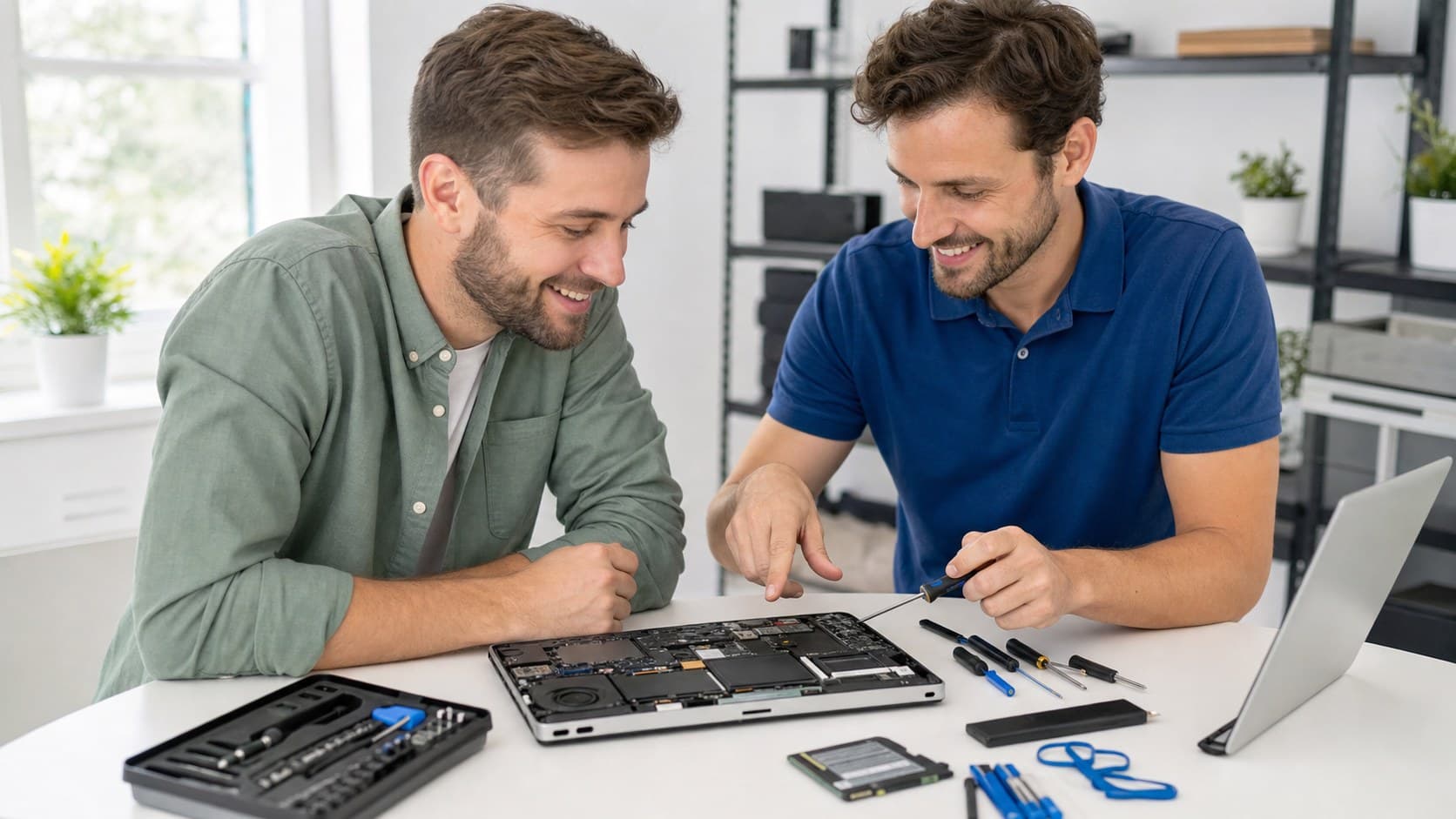
Hardware repair covers parts and physical faults such as battery failure, damaged charging ports, broken screens, noisy fans, overheating, RAM/storage upgrades, and computers that will not power on.
Ask whether the provider can source parts, whether data needs to be backed up first, and whether repair cost makes sense compared with replacement. For older devices, a technician should be honest when replacement is the better value.
4. Data backup and recovery
Data recovery is for missing files, accidental deletion, failed drives, or computers that will not boot. Stop using the device if the drive may be failing; continued use can reduce the chance of recovery.
Simple cloud or deleted-file recovery may be possible remotely. Clicking drives, liquid damage, and physically failed storage usually need specialist recovery or careful onsite assessment.
Before any repair that changes the operating system, ask where your photos, Desktop, Documents, browser bookmarks, email archives, accounting files, and licence keys are backed up.
5. Printer, scanner, and accessory setup
Printers and scanners often fail because of Wi-Fi changes, driver updates, stuck queues, or mismatched device settings. Remote support can fix many software settings. Onsite help is better when the printer needs Wi-Fi pairing, cable checks, shared access for multiple users, or placement advice.
6. Networking and Wi-Fi repairs
If one computer is slow online, the device may be the issue. If every device is slow or unreliable, the problem is more likely the modem, router, Wi-Fi coverage, NBN connection, or network layout. Onsite testing is often the best option for dead zones, apartments with interference, or small offices with several users.
7. Setup, transfer, and tutoring
Computer repair is not always about faults. Many customers need a new computer set up, files transferred, email configured, backups turned on, or a patient explanation of how to use the device confidently. This can be especially useful after buying a new laptop or changing internet providers.
How to choose the right repair service
Tell the provider the device model, age, operating system, symptoms, error messages, and whether the issue affects one device or many. If you have important files, say so before any repair work begins.
Ask for the likely path before booking: remote diagnosis, onsite visit, pickup, parts quote, or replacement advice. Everyday Computing provides remote, onsite, and pickup options across Sydney. If the problem is software-related, remote support may be fastest. If hardware, Wi-Fi, printers, or multiple devices are involved, onsite support is usually the better booking.